Orientation
Ported from Microsoft's XNA 4.0 Orientation Sample for Windows Phone.
Source for this sample on GitHub ↗
 Play ▸
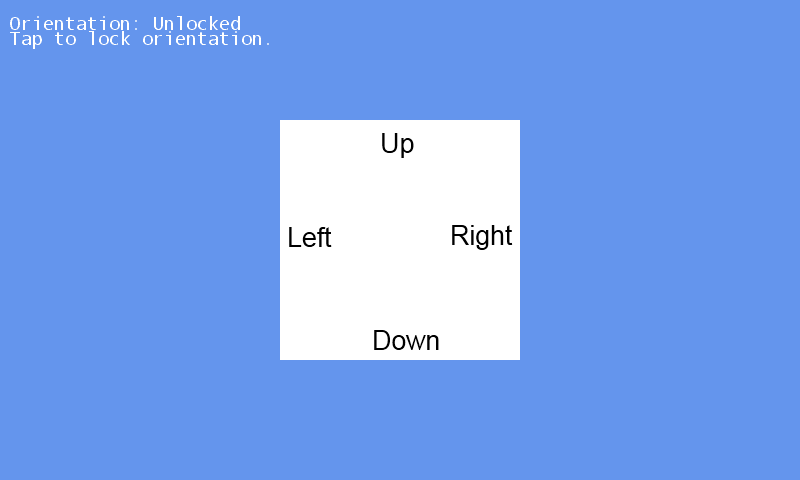
Opens in a new tab. Focus the game, then use ↑ for portrait and ← / → for the two landscape positions. Tap or left-click to lock or unlock orientation.
About this sample
This tutorial demonstrates four ways to configure a Windows Phone game's screen orientation. This port starts in the original tutorial’s fourth configuration: full resolution, portrait and both landscape positions, with tap-to-lock behavior and a centered direction guide.
The upstream download starts in a static landscape configuration. At the owner’s request this port selects the existing fourth configuration and enables CNA’s optional keyboard orientation emulation. A position requested while locked takes effect after unlocking. The other tutorial configurations remain source edits.
Controls
| Action | Control |
|---|---|
| Stop the sample | Gamepad Back, or close the game tab |
| Portrait | ↑ |
| Landscape left / right | ← / → |
| Lock or unlock orientation | Tap or left-click |